
Stop Visual Studio Code From Closing the Current File When Clicking a New File to Open It.
If you just want the quick fix for this issue: Uncheck Workbench > Editor: Enable Preview in Visual Studio Code’s Settings.
The Visual Studio Code Editor’s default file open behavior is called “preview mode”. When preview mode is enabled, single clicking a file opens the file in preview mode and double-clicking a file opens the file in edit mode. If a file is open in preview mode, and no changes have been made to the file, then single-clicking another file will close the open file and open the new file. This can be frustrating in certain circumstances. I prefer my files to just open permanently when I click on them in the file explorer. Here’s how to shut that behavior off.
Press the
Ctrl+,keyboard shortcut or click File > Preferences > Settings to open the Settings window.Search for “preview mode” in the Settings search bar:
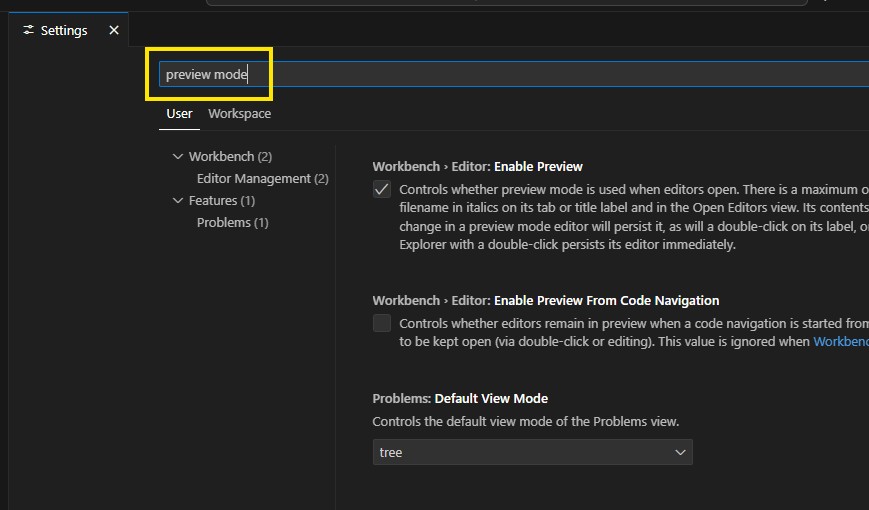
Search Settings for Preview Mode
- Uncheck the box under “Workbench > Editor: Enable Preview”
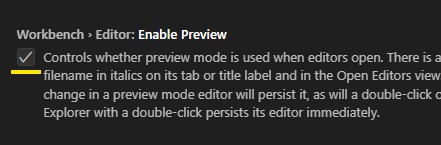
Uncheck This Checkbox to Shut Off Preview Mode
- Visual Studio Code will show a vertical line next to the setting to indicate it has been changed.
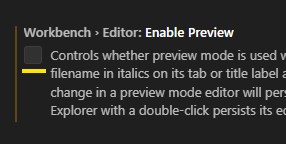
Uncheck This Checkbox to Shut Off Preview Mode
Close the Settings window
The setting change will be automatically applied when the window is closed.
Once these instructions have been completed, Visual Studio Code will leave any file you click on open in the Editor window.