
How to generate a GUID or UUID without writing a program.
Quick reference for generating a GUID/UUID without writing a program. These examples are intended primarily for one-time generation. For high-throughput processing scenarios, consider a programmatic approach.
Throughout this guide, I use the terms GUID and UUID interchangeably. While the history of the two formats are different, they are essentially the same and technically interchangeable.
To generate a GUID/UUID in a Linux terminal, type uuidgen and press Enter. THe command will return a newly generated GUID/UUID.
NOTE: While the
uuidgencommand is widely available on most Linux distributions, it is not installed by default on all distributions. You may either need to install it, or use an alternative method to generate the value.
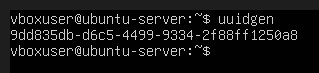
Linux uuidgen command
If you need the GUID/UUID in uppercase, you can use the tr (translate) command to convert the result to uppercase by typing uuidgen | tr [:lower:] [:upper:]
To generate a GUID/UUID in PowerShell, open PowerShell, type New-Guid and press the Enter key. The new GUID/UUID will be output in the PowerShell window.
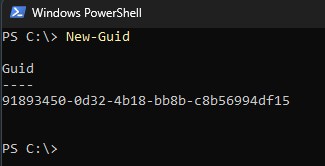
PowerShell NewGuid Command
If you want just the GUID/UUID value, type (New-Guid).Guid.
If you want the GUID/UUID in an uppercase string instead of the default lowercase, type (New-Guid).ToString().ToUpper().
To generate the GUID/UUID and automatically copy it to the clipboard, type (New-Guid).Guid | Set-Clipboard.
My examples for MySQL use MySQL Workbench. However, the queries are supported in any interface that supports running queries in MySQL.
To generate a GUID/UUID in MySQL, enter the query select uuid(); and run it. MySQL will return a new GUID/UUID value every time the query is run.
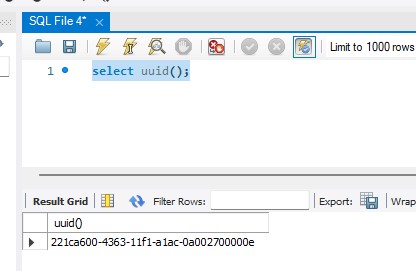
MySQL select uuid(); query
MySQL returns the GUID/UUID in lowercase format. If you need the GUID/UUID in uppercase format, then wrap uuid() in the upper() function. The query becomes select upper(uuid());, and the GUID/UUID will be returned in uppercase.
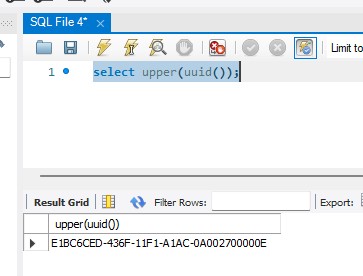
MySQL select upper(uuid()); query
My examples for SQL Server use SQL Server Management Studio (SSMS). However, the queries are supported in any interface that supports running queries in SQL Server.
To generate a GUID/UUID in SQL Server, enter the query select newid() and run it. SQL Server will return a new GUID/UUID value every time the query is run.
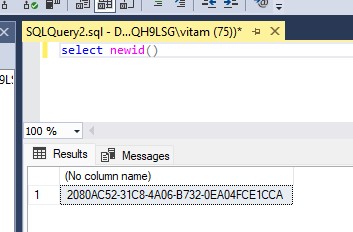
SQL Server select newid() query
If you need a lowercase formatted GUID/UUID, then wrap newid() in the lower() function. The query becomes select lower(newid()), and the GUID/UUID will be returned in lowercase.
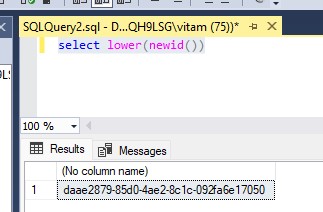
SQL Server select lower(newid()) query
To generate a GUID/UUID in Visual Studio, click the Tools menu and then click the Create GUID menu option. The Create GUID dialog box will display.
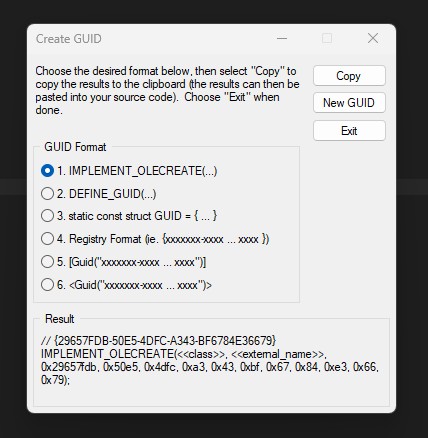
Visual Studio Create GUID Dialog
The Visual Studio Create GUID dialog supports creating the GUID in 6 formats. The supported formats are very Windows specific. Visual Studio is lacking an option to simply create a GUID/UUID as a plain string with no wrapping characters. The easiest way to get as close as possible to the simplified format is to choose the Registry Format, click the Copy button, and then remove the curly braces from the beginning and end. You may also need to use a text editor to convert the upper case characters to lower case if the environment in which you need the generated value has set lowercase values as the standard.
Visual Studio Code is, by default, a source code editor with limited out-of-the-box functionality. It relies on extensions for customization. Generating a GUID/UUID in Visual Studio Code isn’t supported by default, but there are many extensions that do support GUID/UUID generation. One such extension is called Insert GUID . I’ve installed the extension in my version of Visual Studio Code. Once installed, I can press Ctrl + Shift + P to open the command palette. In the command field, I can type insert guid and click on the available command option. Clicking on that option gives me similar options to those available in Visual Studio.
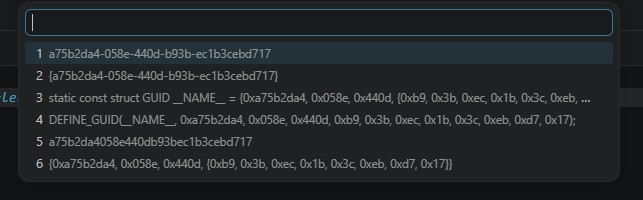
Visual Studio Code: Insert GUID Extension Options
One nice thing about the Visual Studio Code Insert GUID extension is that, unlike Visual Studio, the generated GUID/UUID is provided in lower case. This is how I prefer to see GUID/UUID values, as it is the more commonly used format across the industry as a whole.
The casing of the GUID/UUID does not matter. A GUID/UUID value is a 128-bit value, represented by hexadecimal characters. So,
Aandaare the same value,Bandbare the same, etc. Just be consistent if you can. However, it is possible to see systems with many external partners exchanging data to see a mix of both. This is perfectly acceptable and causes no problems from a technical perspective.
Another nice thing about the Insert GUID extension is that the first option is just the GUID/UUID alone, without any additional delimiters or other data elements.
An extension isn’t really necessary in Visual Studio Code, as you can just use the integrated terminal to access the operating system’s already existing utilities for creating a GUID/UUID. On Windows, for example, you can just open a PowerShell terminal and follow the instructions for generating a GUID/UUID in PowerShell . On Linux, open a terminal in Visual Studio Code and follow the instructions for generating a GUID/UUID in Linux .
Generating a GUID/UUID is very easy to do using what I would consider generally available tools for most developers. For one-off GUID/UUID generation, there is usually no reason to write a program. If one of the methods of generating a GUID/UUID discussed in this article isn’t available to you, it may be worth checking to see if one of the tools that you already use has the capability to generate one.